Thursday, 18 February 2016

Travelling with work - Tips and Tricks

Travelling with work - Tips and Tricks


I've been doing a bit of travelling outside of Ireland with my job lately and thought it might be a good idea to list a few tips for potential travellers if you find yourself suddenly sent abroad!

Firstly I got a good tip from a colleague - get signed up to whatever loyalty programmes you can, Hotel, Car Hire etc and use them when you book to get free uprades and other benefits.

There's always the timing of flights vs project attendance to work out. If you're full time on a project some customers won't mind you turning up mid morning on a Monday and leaving mid afternoon on a Friday to catch flights etc but for the first week or two you're better off travelling on the Sunday and leaving Friday night until you get the lay of the land, see how the project goes and discuss with your Project Manager and customer. See if remote working is possible so you can get home on a Thursday night perhaps and get some washing done while queueing repetitive tasks or compiling reports on Fridays in more comfortable surroundings with less distractions (at least in my case!).

Eating healthily is more of a challenge of course when you're travelling and not cooking for yourself. Picking what you eating and where you eat is often a compromise between convenience and starvation! Check tripadvisor for the top 5 restaurants in your area and get out for a walk every other day to clear the head. Sometimes the customer canteen does breakfast and dinners that are more reasonable than the Hotels and have healthier options than traditional fare elsewhere. Pub grub I found varies and inevitably the local isn't great but if you travel you can find the best places but be warned, they can change hands or have a different commi chef so if you're coming back after a couple of months beware!

Car Hire is interesting as I've gotten 4 different cars so far that my own at home feels wierd every time I drive it now! The sat nav's I've not been impressed with so I purchased a phone holder with a suction cup to attach to the windscreen (got this in the airport at Dixons) and it's been working wonderfully since. Google Maps has a nice drive mode but doesn't feature speed cameras but once you get used to it the recent history is very useful to repeat recent trips. It also shades itself in black at nighttime. Just make sure you have charged your phone, have roaming data and don't forget your phone holder when you hand the car back. One thing that's missing is an ice scraper on cold mornings. I'll have to find a small one I can bring, using the hotel card can cause it to break! The car rental companies should really include it...finally check if it's a petrol or diesel and see if filling up before you bring it back is worth it or if it's nto much differance pay the fee to teh car rental to do it for you. It can depend on milleage so find out.

I found the following one on Amazon:

http://www.amazon.co.uk/Swedish-Ice-Scraper-Original-Yellow/dp/B009SKM7Z4

Watch out for the heating and TV in the Hotel room. The heating is usually on full blast and at nighttime I find it hard to sleep so cooling it down as soon as I get in is important. The TV in my room a few times has a large white standby light but for some reason at 3am one morning it started blinking and woke me up - cue towel now to cover it before I go asleep or find a way to turn it off if you've access to the power socket!

My friend is sensitive to noises so the air conditioner is always a problem but I've not found that myself. I was put beside a stairs and there were 4 flags outside on a stormy night so I asked for earplugs and kindly they moved me to a different room. If you are there for the week that can ruin your stay and you've to work the next day so unless they are full keep an eye out for room numbers at the top of the corridoor which can have everyone muttering past your door and the sound of lifts all night! Once you figure out the room numbering you can catch it at checkin or if you're checking in online sometimes certain hotel chains let you choose your own room, just beware, they don't always honour this when you arrive to get your key!

I prefer to check a bag as this means I can keep a small backpack with my valuables, laptop, kindle etc with me and it's very easy to fit it under the seat in front of me. A spare pair of underwear is recommended, Toiletries you can always get from the Hotel or a local Boots if stuck and your bag goes missing. This means during boarding I'm not competing for overhead locker space to save money and can take my time, it makes for a less stressful experience with Ryanair in particular.

Keep your Passport and car hire details to hand with a written address list (customer address and hotel address) until you get familiar with the route. Also keep your security badge if given one handy because if you leave it at home you're stuck for the week with visitor passes, so when you're finished with it, keep it in the backpack or you WILL forget it one week! I've been in one situation where I forgot my passport and only discovered it after approaching security. Cue one fast taxi trip back home! Use a checklist for travelling, put things on it you may forget at the last minute and keep a bag ready packed with basics you can afford to leave it there.

I've started using Hailo for booking Taxis and it's handy as it sends reminders and tells you where the taxi driver is and when they arrive. I can also do the payment in the app so there no cash and no fuss. Working out when to leave the house can be tricky. Too early and you can end up arriving at the boarding gate two hours early. Too late and you find when you arrive there a huge tour group and a sports club with 80 kids in front of you at check-in! I've been to the airport one week and took 10 minutes to drop my bag and get all the way through security, and the next week it takes 40-50 minutes! Watch out for the 30-40 minute closure of check-in desks, even if it's no fault of your own you'll be stuck!

Bring books, bring movies and do a little study if it's not been too crazy a day. Get that fresh air and practice mindfulness. Book an excursion into the West End and see a show to break up the week if you're close to a City where that is an opportunity. Or a football match. Get active, find out if the Hotel has a Gym or access to a local one, or a swimming pool? Use the stairs instead of the lift and walk to the local restaurants if it's safe to do so! Keep in touch with loved ones, email, text often and count teh days down to returning home, there's nothing like coming in the door and putting your bags down when you're arrived!



Sunday, 14 February 2016

DevOps - How do you like your Unicorns, sir?!

DevOps - How do you like your Unicorns, sir?!


I've been hearing a lot about DevOps lately, about the same as I was hearing about Openstack this time last year. I was wondering if all I was hearing was smoke/fud or if I would be impacted by being out of a job soon?! I saw a slide which depicted Developers as the King on the Chessboard and the way it was presented sounded like there was no more need for Operations/Infrastructure people at all. Everything was code.

What triggered a step up in my knowledge was a piece that The Register did on People & DevOps:

http://www.theregister.co.uk/2016/01/15/devops_people_problem/

In particular I found the comments insightful. People were saying it was a load of baloney and with massive legacy systems and approaches, they couldn't see how it would work. I had previously thought DevOps might be all about the Tools - Puppet, Openstack, Chef, Ansible etc. One blogger I've followed for years is Scott Lowe who had moved from a VMware vSphere Guru to someone who is learning all about these tools. I was fascinated about why though. I'm not a Developer and PowerCli is about as far as I go with coding/scripting.

Scott responded to an email I  send him and made a few very good points, mainly that scratch to word DevOps! It's all about the People / People in the Organization and how they communicate, share, and focus on the Business goals/needs/objectives.

One Book mentioned in the article was "The Phoenix Project" and I only got around to reading it last week:

http://itrevolution.com/books/phoenix-project-devops-book/

And.....it rocks!! I was feeling the pain of the fictional IT Manager with catastrophic failures occurring, deadlines, screaming and frustration at every level until they figured out what was happening and eventually straightened out the mess and got "DevOps" in place. Sounds like fairy dust?!! The Authors use the story to take you through the steps, mistakes and achievements each small change the team makes until you see the value of what this is all about. Now, maybe it won't suit many Organizations, or only the most desperate ones! But this is the book that finally made sense to me. I read one or two other books on "DevOps" but like ITIL (!) they bored me to death. A story on the other hand conveys direction, and I recognized things I've faced (and caused!)  in my IT career in the book which was scary!!

So, this led to other research and I found myself reading "The Goal", a 30 year old book about this very thing but focused on a fictional manufacturing plant:

http://www.amazon.co.uk/gp/product/B002LHRM2O

So along with this I started watching videos from last years DevOps conference:


And THAT led me to the 5 best practice guides (well, 4 PDFs, 1 video): 


And of course I check in with The Register once in a while to read the comments:


I've now over 12 more books ordered via Kindle to read and I've a lot to look at - I already knew about Toyota but want to learn more about Lean, Agile, Scrum, Kanban, CI/CD etc that I'd heard mentioned in the books & videos. I think the most important skill is going to be about dealing with the people part of this process so while I need to get familiar with the tools, this is not a quick fix, it's going to be a journey for me that will take a while to understand. 

The videos from the 2015 conference are particularly interesting as one common thread was how this is a grass roots movement started from the ground up in those Organizations. It didn't get buy in from management until much later and the word "DevOps" was used as a curse word by the detractors. But by starting with only a few instigators and a bit of slack time they begin to chip away at the goal, innovate around them, introduce new tools (sometimes without consent!) to show how it actually helps and start proving to the teams around them that it has value. Real metrics, real delivery, real agility. 

I watched the video about Google introducing automated testing in 2005 as the lack of it was strangling their ability to ship good code and there was a real risk of downtime yet it was a handful of Developers who championed it, not management! Check out the toilet training they did! 

Target are the second largest importer in the USA and offshored all their code. DevOps was brought in by a small handful, it was a hard sell but gradually they got successes and started bringing more of their work onshore. They now hold annual DevOps days internally and invite external speakers to keep the momentum going. How about a Lab that invites teams to code for 2-3 days with a mentor sitting with them to show them how to do it better. It's more like a family event than a Business one! 

The biggest light bulb moment I saw was when people declared the value they experienced no more so when it comes from a previous detractor! And boy do they complain when they move jobs and don't use it anymore! 

Interestingly to me: HP also has experience in this area around Printer Firmware:


That's all I bore you with for now! If you're into troubleshooting, improving outcomes, working smarter instead of faster you might find some of the resources above enlightening, even if DevOps is a world away for you right now. I think as more companies embrace it I hope it will improve the working environments of many and force competitors to step up and the wave this creates will put people back at the center of the Organization they are in, instead of a number on a profit / loss sheet. 

Bon Voyage!

P.S. Unicorns are organizations that are new and have embraced DevOps culture form the get-go. Think Netflix etc. Horses refer to older Orgs - watch the great video on Ticketmaster from the conference to see how even "old" dogs are ready for new tricks! 

Saturday, 30 January 2016

Excel use in IT in 12 minutes!!

Excel use in IT in 12 minutes!!


I thought I'd base this post on Excel as from time to time you end up using it in IT. For consultants we generally pull it out when we're doing inventories for Datacenter Moves, or Discoveries among other things, at least on the delivery end.

I've been working on some Excel this week and started thinking about how the file was laid out and as I do, began making some improvements & changes to make life easier for myself. I thought I'd lay out my process here as it might help someone out or give them ideas on how to develop their own Excel knowledge when they have to dive into it.

Now, I'm no Excel expert but as you use it and try to figure things out you pick up a few things. Also helpful is when you get similar collateral from earlier projects from colleagues. So the longer you're in IT the more of this you have to draw on, if you can remember that it A) Exists, and B) Know where to find it!

I was asked to take part in a discovery exercise for a customer. I had two excel files from other projects, neither of which I worked on but had mature & valuable excel file designs. So once sanitized they could be of value, but which to use?!

The first was more basic, formulaes, pivot tables, lots of data and so on. The second used Macros to generate combinations of data and clean itself out when being used elsewhere. Now the Macro one looked much better, the report worksheets were enticing BUT...I don't know Macros. I could have had access to the guy who generated the original on a call but what if I run into difficulty later on? Choice one: Keep it simple. You can spend hours just trying to get something to work or just have it working. My advice - stick to a template you understand because if you don't, you're on your own. This lets you focus on the data and analysis and not to be fighting Excel all the time when you're in over your head!

So, I chose option A and am glad I did. I could still peek into Excel B for inspiration. Macros are just a way to get things done but formulae can get you there too!

I was given multiple data sources - and I needed to collate all the various worksheets to one master one that brought together key pieces of information.

Source #1: Physical inventory from last year. So this is out of date static data but a good start
Source #2: Discovery Tool output. Valid data within the last 24 hours, excellent source but as I'll explain not as easy to use
Source #3: Application Catalog. They want us to link Apps with Servers. Easy? Not so much!
Source #4: Previous Audit done a few years ago for the Datacenter. If not much has changed could be useful. We got lucky even knowing this existed due to a cracking good program manager on the customer side who had been around a long while.

Never under estimate the people issue, if you get a temporary person on the customer side for this kind of task you will probably never even find out that Source #4 or something like it exists making your job 10 times harder. Also we got a lead for paperwork that might show what servers were retired, again gold for mining to bring other data up to date.

At some point you have to cut off the number of data sources; ip ping sweeps, dns lookups etc the list goes on. Try to get at least two good data sources to correlate as one will never be enough. Two gives you better odds at finding the gaps you don't know about or to prompt questions about kit or subnets that may have been missed. Especially if it's behind a Firewall!

I ended up using the discovery data at the main source, and use the physical inventory to validate it. The discovery is not complete and only shows a fraction of the servers I expected but it's work in progress and using a graph to calculate the difference will be valuable when I speak to management about progress etc. So it will take a while for the discovery tool to get everything, also spend time tuning the output rather than doing it in Excel. We're seeing 500 application lines per server which adds up to 100,000's of excel lines and makes filtering there way too slow to be useful. Dirty in, dirty out; clean in, clean out. Get the Discovery people on your side and do the filtering of data on their side! Do you need a list of windows patches or unix device files for every server?!!

Remember, every time they find new servers you may need to reload that worksheet in your Excel file. Or ask them to supply changes ONLY. Ensure any other worksheets that reference the new data are looking at the full list, so if you start with 50 discovered objects, make sure any lookups reference 1000 lines should they end up finding that many. That way you don't need to update your formulae again. Otherwise you might start accidentally excluding new data if it flows beyond earlier guesses.

Now for the Spreadsheet - here are some headings I ended up with:

Index - list of each worksheet and hyperlinks to them with explanation as to what each is for

Goldmine - this is the worksheet where you gather all the data to give you a total view. Call it what you will!

Source #1 - so here I copy the contents of source #1 after trimming out any fat. Now I have a local copy of the data to look up separate to the original source file. This way I can keep all the data contained in my file without having to link to it and risk breaking anything.

Source #2 - see above
Source #3 - etc
Source #4 - etc

Reports - Using the Calculations worksheet I generated the most interesting graphs to me based on the data I had so far plus later ones I would know I'd need and use, even though the data points were empty at that time. I still had to work out the formulae but once done it's easy to edit later.

Calculations - You can do calculations at the end of any worksheet but it gets messy after a bit as the column widths are based on the data and don't suit the analysis. You can simply just cut and paste the calculations however to a central worksheet. This keep the data sources clean and allows you to keep all calculations grouped so now you can even link one to another easily. I didn't start this way but after all my calcs ended up on my physical inventory data source I decided to migrate them elsewhere to keep that source from becoming messed up any further.

List - Used to create pre-populated drop down lists for any of the other worksheets. I'll hide this later.

Save your file often but also create a new file by copying the old one and incrementing the version number. This protects you against data corruption later. It's like an old style backup. Do this every day and keep the last 1 or 2 versions only. Also kick up the latest copy to Sharepoint or some other backed up repository as a safeguard and to share with colleagues.

Most of the formulae I use are simple lookups and countifs statements; count the number of servers running windows, unix etc. I won't delve onto those here but you can use google which is where I learnt most of the tricks I use today. Take the time to learn this yourself and understand how they work as there's no substitute here for experience. Don't always take the first google result either, later Excel versions have better ranges of formulae so you may find more than one way to get what you need that is simpler and faster. This may break however if the customer wants an export to a much older version. Know your audience!

That's all for now. There's lots more you can do of course but mainly be organized. The worst job I ever gave myself was updating a data source line by line and square by square when I didn't think through how I would incorporate future changes! And as always, enjoy!!


Monday, 18 January 2016

REST APIs - Part II

REST APIs - Part II


Now we've connected to HP OneView, let's step back and try the same with Veeam Backup & Recovery 9.0. Just to see what the difference is?!

You can find the document "Veeam Backup RESTful API" here:
https://www.veeam.com/backup-replication-resources.html
See Page 66 onwards for the beginners example.

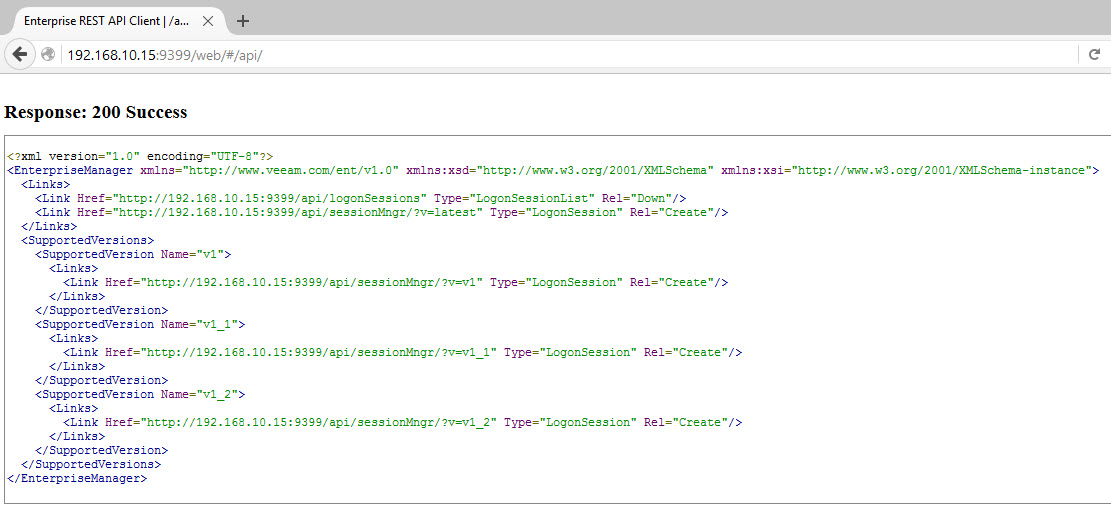
With Veeam you can use a standard browser to do what POSTMAN does, or you can just use POSTMAN instead. Normally you can just issue GET commands with a browser but Veeam are clever people!

If you try the following URL first to check the API is running, it's actually a Windows Service you can view called "Veeam RESTful API Service": http://<Enterprise Server IP Address>:9399/web


You can see links up the top right for Tasks and Sessions but these will only give you a 401 error as you're not authenticated. Now, you can use the web browser to generate an authenticated session but you'll have to encode the username and password in base64. My preference is to switch to POSTMAN which makes this easier as it does the encoding for you!!

Here is the same GET request in POSTMAN:

Next click on the first sessionMngr link, in my case:
http://192.168.10.15:9399/api/sessionMngr/?v=latest"
This opens a new tab in POSTMAN, we'll make some changes to request our session ID and authenticate.
So, change the drop down for Authentication to show "Basic Auth" and change this to a POST command. Click Send and you should get the following:

The SessionID near the end is the key line we want. The URLs provided will are be useful for the next steps, to action particular things we want Veeam to show us or do.

To start with we'll follow the Beginner Guide and get a list of Veeam Backup Servers. You have a list of links, click on the one ending in /api/backupServers. Add the session ID into header as follows:

My Header is called "X-RestSvcSessionId" and I've pasted in the SessionID into the Value field. I've done a GET and received information on the single Backup Server in my Lab and some server specific URLs I can interact with.

My goal is to get the link to the backup template job and fire it up via an API. I know Veeam can schedule things but I figured this was an easy first step to try.

Click on the jobs link of type "JobReferenceList" and it opens a new tab again. Drop in the session ID once more and run the GET. Remember there's a 15 minute timeout so you may need to generate a new sessionID!!!
You can browse to a previous Tab to copy elements. Also the Disk save button to group and keep useful tabs/commands to replay later.

Now I can see a link for my "Backup Templates" job. I just have to call it out and tell the API I want to run it. Then monitor it for results. After that I can close the session.

Page 155 has the POST command syntax for starting a job. The bit at the end is the key part.

Request:
POST http://localhost:9399/api/jobs/78c3919c-54d7-43fe-b047-485d3566f11f?action=start

Request Header:
X-RestSvcSessionId NDRjZmJkYmUtNWE5NS00MTU2LTg4NjctOTFmMDY5YjdjMmNj

I just need to click on the supplied URL and add the header to my new tab and see if it works! Not quite as easy as that, remember to add "?action=start" to the end of the URL request to tell it what you actually want to do!!!


The Job is now running in Veeam:


Next, how do we get a job status to see if it's finished / failed / succeeded? You can check it's started with this:

Next we can check existing backup sessions:
http://192.168.10.15:9399/api/backupSessions

This gives you some details of jobs with timestamps against them. You can probably zone in on a particular session or use the reporting options but it's not as intuitive as the Veeam console so I'll leave those possibilities up to you!

The POSTMAN Client has "Collections" entities and the option to save those tabs you worked on under the Collections. This makes it easier to replay although the sessionID still needs to be changed but you can use the Authorization option to authenticate once off commands. I'm sure DEVs can script injecting a valid sessionID into their scripts!

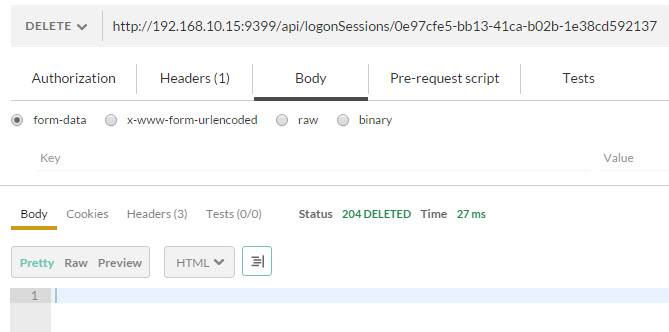
Now to delete the sessionID there is a DELETE command
http://localhost:9399/api/logonSessions/695f7cda-e4a6-4d9c-9603-8a6b05693c57
In my case:

That's it!

So why use this? Once you abstract the commands you use to interact with a Product and you have other Products which work this way such as OneView, you can create higher level relationships to automate things better.

How about querying a large replication task is completed before firing off a backup? Or pausing backups if a Datacenter or Host is running hot via the temperature alerts in OneView?

What tasks are performed manually regular enough to script and can you adapt the script so when a new vCenter, ESXi Host or VM is created the script can handle the change with dynamic queries?

That's just the tip of the iceberg! How about deploying a new ESXi Host automatically when OneView detects high resource consumption? Or when DevOps deployed Apps on CoreOS/Docker run slow triggering a build of more CoreOS VMs and sets up Veeam Replication for them automatically?

On REST in other applications, it's been a while since I looked at vCenter Orchestrator, now called vRealize Orchestrator. It's no longer baked into the vCenter deployment so you've to download, install and configure a vCO appliance. Then you create vCO workflows which you can call on with REST. In other words it's second hand integration, you need a person who understands vCO to setup all flows before you can call them with variables via your REST client. Not so hot but can be done.

Good articles that cover REST and vCO here:
http://www.vcoteam.info/

Enjoy!


Thursday, 14 January 2016

REST APIs - Part I

REST APIs - Part I


In this post I wanted to introduce APIs a bit. I've used Powershell and PowerCLI with VMware mostly for many years but with DevOps, Ansible, Github, Openstack, Chef, Puppet etc REST is now becoming a skill I need to understand, or at least know about.

I loaded up HP OneView 2.0 and Veeam Backup & Recovery 9.0 to get a feel for using an API to drive things. Both were a little different but interesting to explore in this way. Of course you can still use Powershell but this exploration was intended to expand my knowledge beyond the traditional tools I was familiar with.

Firstly you need a REST Client. I used a Chrome Application/Extension. You'll see the Apps icon on the Taskbar on the left as shown below:

Next, Click on the Web Store

Now do a search for REST. Here's a few - I've heard a lot about POSTMAN which is what I'll be using here

I've already installed Postman, you just need to click "+ Add to Chrome" and click on the Chrome Apps Taskbar button and this time you'll see the new App

Next Click on the new Application and a new Browser Window opens up for you to play with!

Give yourself time to get used to the interface. What we'll do next is some basic requests with OneView and get used to using this tool to query and operate this API.

Once you have configured the OneView administrator password and set IP Address etc we're all ready to go. You should be able to browse to the admin interface with a browser. Now we'll access it with POSTMAN and see what that looks like.

Do a "GET" and put in the URL to the OneView appliance, in my case "https://192.168.10.51" and Click Send. You should get a 200 OK Status Response. The fun starts here!!!

Now, we need to get authentication worked out by generating a sessionID. We do this by adding some headers. There are two needed, by the way I'm following the guide here:
http://h17007.www1.hp.com/docs/enterprise/servers/oneview1.2/cic-rest/en/content/s_start-working-with-restapis-sdk-fusion.html
Content-type: application/json
Accept: application/json
The headers should match mine shown below

Now make sure you change the type to POST and edit the URL to add "/rest/login-sessions" and then click the Body section and choose RAW and enter in the following into the text box below
{"userName":"administrator","password":"mypassword"}

change the password for your environment and Click SEND. You should get a sessionID in the box lower down with a Status 200 OK. The sessionID can now be copied and added as a third header row so you can send authenticated commands to OneView as shown here

Then Run a GET and set the request to be https://192.168.10.51/rest/version and see if you get this result

You are now set to have some fun!! 

HP Lists the API commands on the following page:
http://h17007.www1.hp.com/docs/enterprise/servers/oneviewhelp/oneviewRESTAPI/content/images/api/

The commands each have an examples and vary from basic to complex. Let's try a few.

List the Users on OneView

Click the Security/Users link on the API webpage above. It shows a GET option with url /rest/users. You can click on the triangle to the left to expand this command for an example. The top grey box appears to be the command used and the expected result is shown in the second box. 

So, by just changing one word from the last test from "version" to "users" and adding an extra header for X-Api-Version: 100" I can SEND this and get the result below

Add a User to OneView

Now let's try adding a User. Copy the command given against "POST /rest/users" including the {} and POST it as follows:

Now you should see the user in the OneView web console. You just make your first step into DevOps Territory!! Well Done!!

I'll cover Veeam and more options in OneView in the next Post, Enjoy!


Wednesday, 6 January 2016

Which is better? 1 vCPU or 2 vCPU standard VMs

Which is better? 1 vCPU or 2 vCPU standard VMs


I came across a comment that it's better to use two vCPU in your VM template rather than a single
vCPU. It is meant to perform better, schedule better and scale better than just a single one. Now I had my doubts but I've always liked testing these things on a real server to see what happens. My test rig has a Xeon 4 core cpu with lots of GHz so I set up 4 and then 8 VMs and tested different loads and configs and have the ESXTOP results below.

Test #1: 4 x 1vCPU VMs (5 minute test, using 1 core on each VM at 100%, 200MB memory load)

No %VMWAIT
Constant %RDY
Constant %OVRLP
So, copes well, nothing too crazy here. 

Test #2: 4 x 2vCPU VMs but only 1 core maxed (5 minute test, using 1 core only on each VM at 100%, 200MB memory load)


Periodic %VMWait
Constant %RDY
Constant %OVRLP
So, this actually performed better as with loadmaster it used one thread but scheduled them between each available vCPU and got overall better performance. Interesting! 

Test #3: 4 x 2 vCPU VMs but used two of them maxed out cores (5 minute test, using 1 core on 2 VMs only at 100%, 200MB memory load)

No CoStop issues seen
Constant %OVRLP on busy VMs
Constant %RDY on all 4 VMs
Periodic %VMWAIT on 2 idle VMs
So, this time things aren't too bad, but the idle VMs are probably starved a bit until they start ramping up also. 

Now we go into over commitment, exceeding the physical cores available by stacking up more than 4 vCPUs:

Test #4: 8 x 1vCPU VMs (5 minute test, using 1 core each at 75% load, 200MB memory load)

Constant %OVRLP on all VMs
Constant %RDY on all VMs
Pegged the physical cores but only %RDY really standing out. ESXi scheduler is doing it's job nicely!


Test #5: 8 x 2vCPU VMs (5 minute test, using 1 core each at 75% load, 200MB memory load)

Only difference between this and last test is increased number of vCPU per VM, still only running single threaded 75% load but it’s switches between Core 0 & 1 inside the VM.
Constant %VMWAIT on some VMs
Constant %CSTP on all VMs
Same workload, but now getting scheduling conflicts as cpu overprovisioning is 16 vCPU to 4 pCPU vs previous test of 8 vCPU to 4 pCPU. Which one do you think performs better?!! Now Co-Stop isn't too high but with the same number of VMs we heading into performance trouble territory. 

Test #6: 8 x 2vCPU VMs (5 minute test, using 2 threads @ 37% load, 200MB memory load)

This is similar to previous test but we’re now directly addressing the second vCPU in each VM.
Constant %CSTP on all VMs – very high level despite similar workload, just running two threads instead of one, performance on this would be awful. 


Notes:
%OVRLP – Time spent on behalf of a different resource pool/VM or world while the local was scheduled. Not included in %SYS.
%WAIT – Time spent in the blocked or busy wait state.
%RDY – Time CPU is ready to run, waiting for something else.

NWLD – Number of members in a running worlds resource pool or VM. 
(increases when # vCPU goes from 1 to 2)

So, I would say from what I saw that if you never over provision your physical cpu and keep a 1 to 1 mapping (i.e. never exceed the total number of physical cpu cores with the total number of virtual CPU cores) then you might actually get better performance with single threaded workloads. 

Once you get into overcommitment you're looking at issues. You're opening more CPU paths for VMs to take down the physical cores and while VMware does an amazing job, with like for like workloads, a lower number of vCPU performs better, or at least I would expect it to based on the ESXTOP results above. 

So if you have a static environment you have a choice. If you're a consultant and not hands on day after day as an admin on a particular customers environment then I would say you're taking a chance with 2 x vCPUs in the template. I would expect the customer to be calling you within a year and complaining about really bad performance during critical end of month periods and while I would expect a storage issue in this case the configuration caused by too many vCPU would require right sizing all the VMs and take downtime for each, not always easy or possible......makes your choice, takes your chances!


Monday, 28 December 2015

Old Phone - new Android

Old Phone - new Android


I've been increasingly frustrated by the speed at which my old Smartphone has been responding lately and wanted to find a solution before heading into the new year. The phone is a 2012 HTC One S and I'm well used to it but the usage is getting sluggish and I was wondering if it would be better to wipe it, or replace it.

I looked at a replacement M8 handset for €499, or a budget chinese smartphone for under €200 as options. One thing I was interested in however was to try to use an unofficial Android variant I'd been hearing about. I'd never tried unlocking my phone before except to use other operator sims, rather than the one I'd purchased it with. Cyanogen Mod had been one I'd come across a few times but I had NO idea how to go about installing it. Turns out it WAS as hard as I suspected!!! But next time around it will be easier and I'm keeping notes in this post to help me and anyone else out interested in the activity!

Needless to say this is unsupported by Google, the smartphone manufacturer and anyone else! The risk is poor quality phone calls, crashing phone, malfunctioning devices etc. There was only one way to find out though!

So Cyanogen has a good wiki with walk through for most main phone types. They also have an easy installer but this had been recently pulled due to a security issue. I had to go old school.

I used Easy Backup & Restore to take a backup of my contacts, messages etc. and put the backup file on the SD Card.

The main wiki page for Cyanogen is as follows:

https://wiki.cyanogenmod.org/w/Main_Page

They have forums here:

http://forum.cyanogenmod.org

There is a list of pre-compiled builds or you can make you own (!). I used the Latest Release and Recovery build for my phone as listed here:

https://download.cyanogenmod.org/?device=ville

If you can find you own smart phone in the list on the left at least you know you're not on your own! The Forum has a sub section dedicated to each phone. Read first to see what the known issues are and you may or may not encounter them but best be forewarned!!

The main install guide I used was:

https://wiki.cyanogenmod.org/w/Install_CM_for_ville

This walked me through the main steps except unlocking the HTC itself. I needed to create an account on HTCDEV for that:

http://htcdev.com/bootloader/

Now I seemed to need a Linux O/S. I tried using Ubuntu 5.10 on VMware Workstation but the USB kept dropping as "unrecognised" when the Phone was booted into "fastboot" mode. I ended up installing Ubuntu on my Intel NUC using a USB created with rufus:

https://rufus.akeo.ie

This takes the Ubuntu ISO and puts it on the USB in Bios or UEFI mode. I used UEFI and after the install, Ubuntu was up and running. I could now plug in my HTC to the NUC and start getting the tools to operate. After pointing at a local update site in Ubuntu I could install adb & fastboot:

apt-get install android-developer-adb
apt-get install android-developer-fastboot

(I think they are the commands above, Ubuntu will help you if you try to use the commands and the packages are missing).

HTC's site offered a fastboot binary as part of the unlock process and I used this instead of the downloaded one to retrieve the unlock code from the phone.

If you enable USB Debugging you can issue a command "adb reboot bootloader" and once rebooted the command "fastboot device" should list the phone. Try "fastboot oem device-info" or "fastboot oem get_identifer_token" to get the key. Put this into the HTC site (you need to be logged on and have a verified dev account) and remove any spaces and INFO words and it should email you a bin file. Give this to Linux and follow the remaining steps from the HTC dev site to finish the unlock process. Sorry, I didn't think to record the steps but it's well documented. I'm sure there's a similar process for other phones.

Now, you can use the downloaded Recovery File and once that is up and running you upload the main image and Google Apps image to your phone and choose the upgrade option for each, browse to the files, and reboot:

http://wiki.cyanogenmod.org/w/Google_Apps#Downloads

I installed the main OS, then installed the boot.img, booted into the new OS and then went back to recovery mode to install the Google Apps I'd forgotten about!

Next it's Restore time. I used Easy Backup & Recovery and the only issue was having to reselect the backup file each time for each category I wanted to restore. Doing this a few times I got back all my contacts, call history, messages etc. By installing Google Apps which gives you Google Play access I could install my favourite apps, download a new Theme from Cyanogen and away I went. Phone call quality was fine and photos also worked. The SD Card preserves a few things like my photos etc but all told it took about a day to go from 4.1.1 to 5.1.1 and I've now been able to install some Apps that wouldn't work on the older Android OS.

It's still day one so don't know how this will work out but the smartphone is more responsive now and flows between menus and apps very nicely. The new UI breathes life back into an old phone and despite the learning curve it was worthwhile and saved me some money. I'm also bloatware free which was another bonus. I had to skip updating all the crap apps I didn't want but couldn't uninstall before. Would I do this with a brand new phone? Probably not, but for an older one where the manufacturer has stopped releasing updates for over two years and you are wide open to security vulnerabilities, this may be one way to respond, while getting better control options not normally exposed to end users.

I hope this gives you an insight into the process. It may be possible to do this with Windows but I found the Ubuntu approach interesting and had the spare hardware once VMware Workstation proved unsuitable.

Thanks to everyone over at Cyanogen Mod for all their hard work and for opening up later Android versions to those of us with older handsets! They are working on CM 13 which gives Marshmallow, mine is now using 12.1 which is Lollipop. You can opt for more beta releases but obviously be prepared for bugs and stability issues.....