Monday, 18 January 2016

REST APIs - Part II

REST APIs - Part II


Now we've connected to HP OneView, let's step back and try the same with Veeam Backup & Recovery 9.0. Just to see what the difference is?!

You can find the document "Veeam Backup RESTful API" here:
https://www.veeam.com/backup-replication-resources.html
See Page 66 onwards for the beginners example.

With Veeam you can use a standard browser to do what POSTMAN does, or you can just use POSTMAN instead. Normally you can just issue GET commands with a browser but Veeam are clever people!

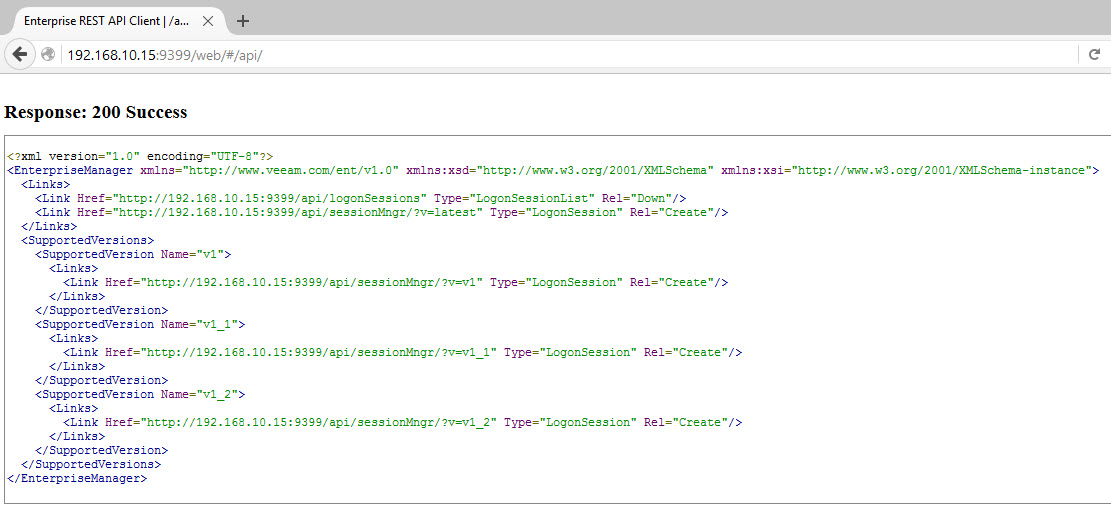
If you try the following URL first to check the API is running, it's actually a Windows Service you can view called "Veeam RESTful API Service": http://<Enterprise Server IP Address>:9399/web


You can see links up the top right for Tasks and Sessions but these will only give you a 401 error as you're not authenticated. Now, you can use the web browser to generate an authenticated session but you'll have to encode the username and password in base64. My preference is to switch to POSTMAN which makes this easier as it does the encoding for you!!

Here is the same GET request in POSTMAN:

Next click on the first sessionMngr link, in my case:
http://192.168.10.15:9399/api/sessionMngr/?v=latest"
This opens a new tab in POSTMAN, we'll make some changes to request our session ID and authenticate.
So, change the drop down for Authentication to show "Basic Auth" and change this to a POST command. Click Send and you should get the following:

The SessionID near the end is the key line we want. The URLs provided will are be useful for the next steps, to action particular things we want Veeam to show us or do.

To start with we'll follow the Beginner Guide and get a list of Veeam Backup Servers. You have a list of links, click on the one ending in /api/backupServers. Add the session ID into header as follows:

My Header is called "X-RestSvcSessionId" and I've pasted in the SessionID into the Value field. I've done a GET and received information on the single Backup Server in my Lab and some server specific URLs I can interact with.

My goal is to get the link to the backup template job and fire it up via an API. I know Veeam can schedule things but I figured this was an easy first step to try.

Click on the jobs link of type "JobReferenceList" and it opens a new tab again. Drop in the session ID once more and run the GET. Remember there's a 15 minute timeout so you may need to generate a new sessionID!!!
You can browse to a previous Tab to copy elements. Also the Disk save button to group and keep useful tabs/commands to replay later.

Now I can see a link for my "Backup Templates" job. I just have to call it out and tell the API I want to run it. Then monitor it for results. After that I can close the session.

Page 155 has the POST command syntax for starting a job. The bit at the end is the key part.

Request:
POST http://localhost:9399/api/jobs/78c3919c-54d7-43fe-b047-485d3566f11f?action=start

Request Header:
X-RestSvcSessionId NDRjZmJkYmUtNWE5NS00MTU2LTg4NjctOTFmMDY5YjdjMmNj

I just need to click on the supplied URL and add the header to my new tab and see if it works! Not quite as easy as that, remember to add "?action=start" to the end of the URL request to tell it what you actually want to do!!!


The Job is now running in Veeam:


Next, how do we get a job status to see if it's finished / failed / succeeded? You can check it's started with this:

Next we can check existing backup sessions:
http://192.168.10.15:9399/api/backupSessions

This gives you some details of jobs with timestamps against them. You can probably zone in on a particular session or use the reporting options but it's not as intuitive as the Veeam console so I'll leave those possibilities up to you!

The POSTMAN Client has "Collections" entities and the option to save those tabs you worked on under the Collections. This makes it easier to replay although the sessionID still needs to be changed but you can use the Authorization option to authenticate once off commands. I'm sure DEVs can script injecting a valid sessionID into their scripts!

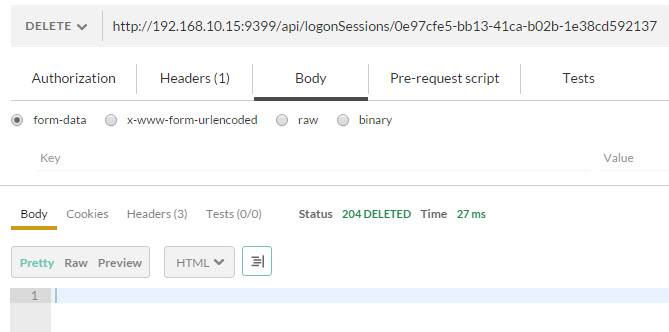
Now to delete the sessionID there is a DELETE command
http://localhost:9399/api/logonSessions/695f7cda-e4a6-4d9c-9603-8a6b05693c57
In my case:

That's it!

So why use this? Once you abstract the commands you use to interact with a Product and you have other Products which work this way such as OneView, you can create higher level relationships to automate things better.

How about querying a large replication task is completed before firing off a backup? Or pausing backups if a Datacenter or Host is running hot via the temperature alerts in OneView?

What tasks are performed manually regular enough to script and can you adapt the script so when a new vCenter, ESXi Host or VM is created the script can handle the change with dynamic queries?

That's just the tip of the iceberg! How about deploying a new ESXi Host automatically when OneView detects high resource consumption? Or when DevOps deployed Apps on CoreOS/Docker run slow triggering a build of more CoreOS VMs and sets up Veeam Replication for them automatically?

On REST in other applications, it's been a while since I looked at vCenter Orchestrator, now called vRealize Orchestrator. It's no longer baked into the vCenter deployment so you've to download, install and configure a vCO appliance. Then you create vCO workflows which you can call on with REST. In other words it's second hand integration, you need a person who understands vCO to setup all flows before you can call them with variables via your REST client. Not so hot but can be done.

Good articles that cover REST and vCO here:
http://www.vcoteam.info/

Enjoy!


Thursday, 14 January 2016

REST APIs - Part I

REST APIs - Part I


In this post I wanted to introduce APIs a bit. I've used Powershell and PowerCLI with VMware mostly for many years but with DevOps, Ansible, Github, Openstack, Chef, Puppet etc REST is now becoming a skill I need to understand, or at least know about.

I loaded up HP OneView 2.0 and Veeam Backup & Recovery 9.0 to get a feel for using an API to drive things. Both were a little different but interesting to explore in this way. Of course you can still use Powershell but this exploration was intended to expand my knowledge beyond the traditional tools I was familiar with.

Firstly you need a REST Client. I used a Chrome Application/Extension. You'll see the Apps icon on the Taskbar on the left as shown below:

Next, Click on the Web Store

Now do a search for REST. Here's a few - I've heard a lot about POSTMAN which is what I'll be using here

I've already installed Postman, you just need to click "+ Add to Chrome" and click on the Chrome Apps Taskbar button and this time you'll see the new App

Next Click on the new Application and a new Browser Window opens up for you to play with!

Give yourself time to get used to the interface. What we'll do next is some basic requests with OneView and get used to using this tool to query and operate this API.

Once you have configured the OneView administrator password and set IP Address etc we're all ready to go. You should be able to browse to the admin interface with a browser. Now we'll access it with POSTMAN and see what that looks like.

Do a "GET" and put in the URL to the OneView appliance, in my case "https://192.168.10.51" and Click Send. You should get a 200 OK Status Response. The fun starts here!!!

Now, we need to get authentication worked out by generating a sessionID. We do this by adding some headers. There are two needed, by the way I'm following the guide here:
http://h17007.www1.hp.com/docs/enterprise/servers/oneview1.2/cic-rest/en/content/s_start-working-with-restapis-sdk-fusion.html
Content-type: application/json
Accept: application/json
The headers should match mine shown below

Now make sure you change the type to POST and edit the URL to add "/rest/login-sessions" and then click the Body section and choose RAW and enter in the following into the text box below
{"userName":"administrator","password":"mypassword"}

change the password for your environment and Click SEND. You should get a sessionID in the box lower down with a Status 200 OK. The sessionID can now be copied and added as a third header row so you can send authenticated commands to OneView as shown here

Then Run a GET and set the request to be https://192.168.10.51/rest/version and see if you get this result

You are now set to have some fun!! 

HP Lists the API commands on the following page:
http://h17007.www1.hp.com/docs/enterprise/servers/oneviewhelp/oneviewRESTAPI/content/images/api/

The commands each have an examples and vary from basic to complex. Let's try a few.

List the Users on OneView

Click the Security/Users link on the API webpage above. It shows a GET option with url /rest/users. You can click on the triangle to the left to expand this command for an example. The top grey box appears to be the command used and the expected result is shown in the second box. 

So, by just changing one word from the last test from "version" to "users" and adding an extra header for X-Api-Version: 100" I can SEND this and get the result below

Add a User to OneView

Now let's try adding a User. Copy the command given against "POST /rest/users" including the {} and POST it as follows:

Now you should see the user in the OneView web console. You just make your first step into DevOps Territory!! Well Done!!

I'll cover Veeam and more options in OneView in the next Post, Enjoy!


Wednesday, 6 January 2016

Which is better? 1 vCPU or 2 vCPU standard VMs

Which is better? 1 vCPU or 2 vCPU standard VMs


I came across a comment that it's better to use two vCPU in your VM template rather than a single
vCPU. It is meant to perform better, schedule better and scale better than just a single one. Now I had my doubts but I've always liked testing these things on a real server to see what happens. My test rig has a Xeon 4 core cpu with lots of GHz so I set up 4 and then 8 VMs and tested different loads and configs and have the ESXTOP results below.

Test #1: 4 x 1vCPU VMs (5 minute test, using 1 core on each VM at 100%, 200MB memory load)

No %VMWAIT
Constant %RDY
Constant %OVRLP
So, copes well, nothing too crazy here. 

Test #2: 4 x 2vCPU VMs but only 1 core maxed (5 minute test, using 1 core only on each VM at 100%, 200MB memory load)


Periodic %VMWait
Constant %RDY
Constant %OVRLP
So, this actually performed better as with loadmaster it used one thread but scheduled them between each available vCPU and got overall better performance. Interesting! 

Test #3: 4 x 2 vCPU VMs but used two of them maxed out cores (5 minute test, using 1 core on 2 VMs only at 100%, 200MB memory load)

No CoStop issues seen
Constant %OVRLP on busy VMs
Constant %RDY on all 4 VMs
Periodic %VMWAIT on 2 idle VMs
So, this time things aren't too bad, but the idle VMs are probably starved a bit until they start ramping up also. 

Now we go into over commitment, exceeding the physical cores available by stacking up more than 4 vCPUs:

Test #4: 8 x 1vCPU VMs (5 minute test, using 1 core each at 75% load, 200MB memory load)

Constant %OVRLP on all VMs
Constant %RDY on all VMs
Pegged the physical cores but only %RDY really standing out. ESXi scheduler is doing it's job nicely!


Test #5: 8 x 2vCPU VMs (5 minute test, using 1 core each at 75% load, 200MB memory load)

Only difference between this and last test is increased number of vCPU per VM, still only running single threaded 75% load but it’s switches between Core 0 & 1 inside the VM.
Constant %VMWAIT on some VMs
Constant %CSTP on all VMs
Same workload, but now getting scheduling conflicts as cpu overprovisioning is 16 vCPU to 4 pCPU vs previous test of 8 vCPU to 4 pCPU. Which one do you think performs better?!! Now Co-Stop isn't too high but with the same number of VMs we heading into performance trouble territory. 

Test #6: 8 x 2vCPU VMs (5 minute test, using 2 threads @ 37% load, 200MB memory load)

This is similar to previous test but we’re now directly addressing the second vCPU in each VM.
Constant %CSTP on all VMs – very high level despite similar workload, just running two threads instead of one, performance on this would be awful. 


Notes:
%OVRLP – Time spent on behalf of a different resource pool/VM or world while the local was scheduled. Not included in %SYS.
%WAIT – Time spent in the blocked or busy wait state.
%RDY – Time CPU is ready to run, waiting for something else.

NWLD – Number of members in a running worlds resource pool or VM. 
(increases when # vCPU goes from 1 to 2)

So, I would say from what I saw that if you never over provision your physical cpu and keep a 1 to 1 mapping (i.e. never exceed the total number of physical cpu cores with the total number of virtual CPU cores) then you might actually get better performance with single threaded workloads. 

Once you get into overcommitment you're looking at issues. You're opening more CPU paths for VMs to take down the physical cores and while VMware does an amazing job, with like for like workloads, a lower number of vCPU performs better, or at least I would expect it to based on the ESXTOP results above. 

So if you have a static environment you have a choice. If you're a consultant and not hands on day after day as an admin on a particular customers environment then I would say you're taking a chance with 2 x vCPUs in the template. I would expect the customer to be calling you within a year and complaining about really bad performance during critical end of month periods and while I would expect a storage issue in this case the configuration caused by too many vCPU would require right sizing all the VMs and take downtime for each, not always easy or possible......makes your choice, takes your chances!


Monday, 28 December 2015

Old Phone - new Android

Old Phone - new Android


I've been increasingly frustrated by the speed at which my old Smartphone has been responding lately and wanted to find a solution before heading into the new year. The phone is a 2012 HTC One S and I'm well used to it but the usage is getting sluggish and I was wondering if it would be better to wipe it, or replace it.

I looked at a replacement M8 handset for €499, or a budget chinese smartphone for under €200 as options. One thing I was interested in however was to try to use an unofficial Android variant I'd been hearing about. I'd never tried unlocking my phone before except to use other operator sims, rather than the one I'd purchased it with. Cyanogen Mod had been one I'd come across a few times but I had NO idea how to go about installing it. Turns out it WAS as hard as I suspected!!! But next time around it will be easier and I'm keeping notes in this post to help me and anyone else out interested in the activity!

Needless to say this is unsupported by Google, the smartphone manufacturer and anyone else! The risk is poor quality phone calls, crashing phone, malfunctioning devices etc. There was only one way to find out though!

So Cyanogen has a good wiki with walk through for most main phone types. They also have an easy installer but this had been recently pulled due to a security issue. I had to go old school.

I used Easy Backup & Restore to take a backup of my contacts, messages etc. and put the backup file on the SD Card.

The main wiki page for Cyanogen is as follows:

https://wiki.cyanogenmod.org/w/Main_Page

They have forums here:

http://forum.cyanogenmod.org

There is a list of pre-compiled builds or you can make you own (!). I used the Latest Release and Recovery build for my phone as listed here:

https://download.cyanogenmod.org/?device=ville

If you can find you own smart phone in the list on the left at least you know you're not on your own! The Forum has a sub section dedicated to each phone. Read first to see what the known issues are and you may or may not encounter them but best be forewarned!!

The main install guide I used was:

https://wiki.cyanogenmod.org/w/Install_CM_for_ville

This walked me through the main steps except unlocking the HTC itself. I needed to create an account on HTCDEV for that:

http://htcdev.com/bootloader/

Now I seemed to need a Linux O/S. I tried using Ubuntu 5.10 on VMware Workstation but the USB kept dropping as "unrecognised" when the Phone was booted into "fastboot" mode. I ended up installing Ubuntu on my Intel NUC using a USB created with rufus:

https://rufus.akeo.ie

This takes the Ubuntu ISO and puts it on the USB in Bios or UEFI mode. I used UEFI and after the install, Ubuntu was up and running. I could now plug in my HTC to the NUC and start getting the tools to operate. After pointing at a local update site in Ubuntu I could install adb & fastboot:

apt-get install android-developer-adb
apt-get install android-developer-fastboot

(I think they are the commands above, Ubuntu will help you if you try to use the commands and the packages are missing).

HTC's site offered a fastboot binary as part of the unlock process and I used this instead of the downloaded one to retrieve the unlock code from the phone.

If you enable USB Debugging you can issue a command "adb reboot bootloader" and once rebooted the command "fastboot device" should list the phone. Try "fastboot oem device-info" or "fastboot oem get_identifer_token" to get the key. Put this into the HTC site (you need to be logged on and have a verified dev account) and remove any spaces and INFO words and it should email you a bin file. Give this to Linux and follow the remaining steps from the HTC dev site to finish the unlock process. Sorry, I didn't think to record the steps but it's well documented. I'm sure there's a similar process for other phones.

Now, you can use the downloaded Recovery File and once that is up and running you upload the main image and Google Apps image to your phone and choose the upgrade option for each, browse to the files, and reboot:

http://wiki.cyanogenmod.org/w/Google_Apps#Downloads

I installed the main OS, then installed the boot.img, booted into the new OS and then went back to recovery mode to install the Google Apps I'd forgotten about!

Next it's Restore time. I used Easy Backup & Recovery and the only issue was having to reselect the backup file each time for each category I wanted to restore. Doing this a few times I got back all my contacts, call history, messages etc. By installing Google Apps which gives you Google Play access I could install my favourite apps, download a new Theme from Cyanogen and away I went. Phone call quality was fine and photos also worked. The SD Card preserves a few things like my photos etc but all told it took about a day to go from 4.1.1 to 5.1.1 and I've now been able to install some Apps that wouldn't work on the older Android OS.

It's still day one so don't know how this will work out but the smartphone is more responsive now and flows between menus and apps very nicely. The new UI breathes life back into an old phone and despite the learning curve it was worthwhile and saved me some money. I'm also bloatware free which was another bonus. I had to skip updating all the crap apps I didn't want but couldn't uninstall before. Would I do this with a brand new phone? Probably not, but for an older one where the manufacturer has stopped releasing updates for over two years and you are wide open to security vulnerabilities, this may be one way to respond, while getting better control options not normally exposed to end users.

I hope this gives you an insight into the process. It may be possible to do this with Windows but I found the Ubuntu approach interesting and had the spare hardware once VMware Workstation proved unsuitable.

Thanks to everyone over at Cyanogen Mod for all their hard work and for opening up later Android versions to those of us with older handsets! They are working on CM 13 which gives Marshmallow, mine is now using 12.1 which is Lollipop. You can opt for more beta releases but obviously be prepared for bugs and stability issues.....


Thursday, 17 December 2015

Installing HP Cloudsystem 9.0 - Part 9

Installing HP Cloudsystem 9.0 - Part 9

I'm using my Lab to learn about Cloudsystem 9.0 from time to time. One of the difficulties I find is that it can take up to an hour to power on the Cloudsystem 9.0 appliances by hand! Shutting them down by contrast is easy! I looked into scripting some of this using Powercli and have come up with the scripts below to accomplish most of what I'm after.

To start we'll set up the ma1 appliance to be able to use public keys when connecting to all the other appliances. Then using plink we can call the ma1 appliance from Powercli to shutdown each of the appliances or run initialization commands on startup.

Disclaimer - I'm doing this in a Lab, check with your Linux guru's & HP Support before touching Production. Use as your own risk!

Putty/SSH into cs-mgmt1 (ma1) and create a new public key:

ssh-keygen -t rsa

Press enter a few times to get the key generated (no passphrase required). Now copy the key to each of the appliances & test as you go:

ssh-copy-id cloudadmin@ua1
ssh cloudadmin@ua1  (this should log you onto ua1 without prompting for a password)
exit
ssh-copy-id cloudadmin@mona3
ssh cloudadmin@mona3
ssh-copy-id cloudadmin@mona2
ssh cloudadmin@mona2
ssh-copy-id cloudadmin@mona1
ssh cloudadmin@mona1
ssh-copy-id cloudadmin@ea3
ssh cloudadmin@ea3
ssh-copy-id cloudadmin@ea2
ssh cloudadmin@ea2
ssh-copy-id cloudadmin@ea1
ssh cloudadmin@ea1
ssh-copy-id cloudadmin@cc2
cloudadmin@cc2
ssh-copy-id cloudadmin@cc1
cloudadmin@cc1
ssh-copy-id cloudadmin@cmc
cloudadmin@cmc
ssh-copy-id cloudadmin@ma3
cloudadmin@ma3
ssh-copy-id cloudadmin@ma2
cloudadmin@ma2
ssh-copy-id cloudadmin@ma1
cloudadmin@ma1

Now grab plink.exe or the full putty installer and put it in your windows path. Launch/Relaunch PowerCLI and test the script below - update the passwords first though!

http://www.chiark.greenend.org.uk/~sgtatham/putty/download.html

Now for the Shutdown CS9 Script:

# Script to shutdown HP Cloudsystem 9.0 Lab - Created by Michael Russell 11-12-15
connect-viserver labvc.lab.local -username administrator -password YourVCPasswordHere
echo "shutting down ovsvapp vm on compute host"
get-vm -name ovsvapp-compute.lab.local | shutdown-vmguest -confirm:$false
echo "shutting down compute.lab.local host"
get-vmhost -name compute.lab.local | stop-vmhost -confirm:$false -force
echo "shutting down the update appliance"
plink -ssh -l cloudadmin -pw YourPasswordHere cs-mgmt1.lab.local "sudo ssh cloudadmin@ua1 sudo shutdown -h now"
Start-sleep -s 10
echo "shutting down the monitoring appliances"
plink -ssh -l cloudadmin -pw YourPasswordHere cs-mgmt1.lab.local "sudo ssh cloudadmin@mona3 sudo shutdown -h now"
Start-sleep -s 10
plink -ssh -l cloudadmin -pw YourPasswordHere cs-mgmt1.lab.local "sudo ssh cloudadmin@mona2 sudo shutdown -h now"
Start-sleep -s 10
plink -ssh -l cloudadmin -pw YourPasswordHere cs-mgmt1.lab.local "sudo ssh cloudadmin@mona1 sudo shutdown -h now"
Start-sleep -s 10
echo "shutting down the Enterprise Appliances"
plink -ssh -l cloudadmin -pw YourPasswordHere cs-mgmt1.lab.local "sudo ssh cloudadmin@ea3 sudo shutdown -h now"
Start-sleep -s 10
plink -ssh -l cloudadmin -pw YourPasswordHere cs-mgmt1.lab.local "sudo ssh cloudadmin@ea2 sudo shutdown -h now"
Start-sleep -s 10
plink -ssh -l cloudadmin -pw YourPasswordHere cs-mgmt1.lab.local "sudo ssh cloudadmin@ea1 sudo shutdown -h now"
Start-sleep -s 10
echo "shutting down the Cloud Controller Appliances"
plink -ssh -l cloudadmin -pw YourPasswordHere cs-mgmt1.lab.local "sudo ssh cloudadmin@cc2 sudo shutdown -h now"
Start-sleep -s 10
plink -ssh -l cloudadmin -pw YourPasswordHere cs-mgmt1.lab.local "sudo ssh cloudadmin@cc1 sudo shutdown -h now"
Start-sleep -s 10
plink -ssh -l cloudadmin -pw YourPasswordHere cs-mgmt1.lab.local "sudo ssh cloudadmin@cmc sudo shutdown -h now"
Start-sleep -s 10
echo "shutting down the Management Appliances"
plink -ssh -l cloudadmin -pw YourPasswordHere cs-mgmt1.lab.local "sudo ssh cloudadmin@ma3 sudo shutdown -h now"
Start-sleep -s 10
plink -ssh -l cloudadmin -pw YourPasswordHere cs-mgmt1.lab.local "sudo ssh cloudadmin@ma2 sudo shutdown -h now"
Start-sleep -s 10
plink -ssh -l cloudadmin -pw YourPasswordHere cs-mgmt1.lab.local "sudo ssh cloudadmin@ma1 sudo shutdown -h now"
pause

So in PowerCli you execute it as "./Labshut.ps1" for instance and wait for it to complete. Replace "YourPasswordHere" with you own Lab password as set in the First Time Setup wizard.


The power up script is more complex but essentially you issue a power on VM command, set a suitable wait timer and execute various checks and you're done. You maybe have a harder time tracking issues as the os refresh generates a LOT of screen activity. Put more pause statements in if you wish, I've left mine until the very end so it's all automated.


# Script to startup HP Cloudsystem 9.0 Lab - Created by Michael Russell 17-12-15
echo "starting up ovsvapp vm on compute host"
get-vm -name ovsvapp-compute.lab.local | start-vm -confirm:$false

# Management Appliance #1
echo "starting up ma1/cs-mgmt1 vm on management host"
get-vm -name cs-mgmt1 | start-vm -confirm:$false
# cs-mgmt1 power up timings to logon 3:06
Start-sleep -s 300
plink -ssh -l cloudadmin -pw <cloudadmin password> cs-mgmt1.lab.local "sudo service mysql bootstrap-pxc"
plink -ssh -l cloudadmin -pw <cloudadmin password> cs-mgmt1.lab.local "sudo service mysql status"

# Management Appliance #2
echo "starting up ma2/cs-mgmt2 vm on management host"
get-vm -name cs-mgmt2 | start-vm -confirm:$false
# cs-mgmt2 power up timings to logon 1:50
Start-sleep -s 300
plink -ssh -l cloudadmin -pw <cloudadmin password> cs-mgmt1.lab.local "sudo ssh cloudadmin@ma2 sudo service mysql status"

# Management Appliance #3
echo "starting up ma3/cs-mgmt3 vm on management host"
get-vm -name cs-mgmt3 | start-vm -confirm:$false
# cs-mgmt3 power up timings to logon 2:43
Start-sleep -s 300
plink -ssh -l cloudadmin -pw <cloudadmin password> cs-mgmt1.lab.local "sudo ssh cloudadmin@ma3 sudo service mysql status"

# Management Appliance Refresh
plink -ssh -l cloudadmin -pw <cloudadmin password> cs-mgmt1.lab.local "sudo os-refresh-config"
plink -ssh -l cloudadmin -pw <cloudadmin password> cs-mgmt1.lab.local "sudo ssh cloudadmin@ma2 sudo os-refresh-config"
plink -ssh -l cloudadmin -pw <cloudadmin password> cs-mgmt1.lab.local "sudo ssh cloudadmin@ma3 sudo os-refresh-config"

# Cloud Controller #1
echo "starting up cs-cloud1 vm on management host"
get-vm -name cs-cloud1 | start-vm -confirm:$false
# cs-cloud1 power up timings to logon 3:40
Start-sleep -s 300
plink -ssh -l cloudadmin -pw <cloudadmin password> cs-mgmt1.lab.local "sudo ssh cloudadmin@cmc sudo service mysql bootstrap-pxc"
plink -ssh -l cloudadmin -pw <cloudadmin password> cs-mgmt1.lab.local "sudo ssh cloudadmin@cmc sudo service mysql status"

# Cloud Controller #2 & #3
echo "starting up cs-cloud2 & cs-cloud3 vms on management host"
get-vm -name cs-cloud2 | start-vm -confirm:$false
Start-sleep -s 10
get-vm -name cs-cloud3 | start-vm -confirm:$false
# cs-cloud2 power up timings to logon 2:43
# cs-cloud3 power up timings to logon 2:47
Start-sleep -s 300
plink -ssh -l cloudadmin -pw <cloudadmin password> cs-mgmt1.lab.local "sudo ssh cloudadmin@cc1 sudo service mysql status"
plink -ssh -l cloudadmin -pw <cloudadmin password> cs-mgmt1.lab.local "sudo ssh cloudadmin@cc2 sudo service mysql status"

# Cloud Controller Appliance Refresh
plink -ssh -l cloudadmin -pw <cloudadmin password> cs-mgmt1.lab.local "sudo ssh cloudadmin@cmc sudo os-refresh-config"
plink -ssh -l cloudadmin -pw <cloudadmin password> cs-mgmt1.lab.local "sudo ssh cloudadmin@cc1 sudo os-refresh-config"
plink -ssh -l cloudadmin -pw <cloudadmin password> cs-mgmt1.lab.local "sudo ssh cloudadmin@cc2 sudo os-refresh-config"

# Enterprise Appliance #1
echo "starting up ea1/cs-enterprise1 vm on management host"
get-vm -name cs-enterprise1 | start-vm -confirm:$false
# cs-enterprise1 power up timings to logon 12:40
Start-sleep -s 900
plink -ssh -l cloudadmin -pw <cloudadmin password> cs-mgmt1.lab.local "sudo ssh cloudadmin@ea1 sudo service mysql bootstrap-pxc"
plink -ssh -l cloudadmin -pw <cloudadmin password> cs-mgmt1.lab.local "sudo ssh cloudadmin@ea1 sudo service mysql status"
plink -ssh -l cloudadmin -pw <cloudadmin password> cs-mgmt1.lab.local "sudo ssh cloudadmin@ea1 sudo -u csauser /usr/local/hp/csa/scripts/elasticsearch start"
plink -ssh -l cloudadmin -pw <cloudadmin password> cs-mgmt1.lab.local "sudo ssh cloudadmin@ea1 sudo -u csauser /usr/local/hp/csa/scripts/msvc start"
plink -ssh -l cloudadmin -pw <cloudadmin password> cs-mgmt1.lab.local "sudo ssh cloudadmin@ea1 sudo service csa restart"
plink -ssh -l cloudadmin -pw <cloudadmin password> cs-mgmt1.lab.local "sudo ssh cloudadmin@ea1 sudo service mpp restart"
plink -ssh -l cloudadmin -pw <cloudadmin password> cs-mgmt1.lab.local "sudo ssh cloudadmin@ea1 sudo service HPOOCentral restart"

# Enterprise Appliance #2 & #3
echo "starting up ea2/cs-enterprise2 & ea3/cs-enterprise3 vms on management host"
get-vm -name cs-enterprise2 | start-vm -confirm:$false
Start-sleep -s 10
get-vm -name cs-enterprise3 | start-vm -confirm:$false
# cs-enterprise2 power up timings to logon 11:31
# cs-enterprise3 power up timings to logon 0:46
Start-sleep -s 900
plink -ssh -l cloudadmin -pw <cloudadmin password> cs-mgmt1.lab.local "sudo ssh cloudadmin@ea2 sudo service mysql status"
plink -ssh -l cloudadmin -pw <cloudadmin password> cs-mgmt1.lab.local "sudo ssh cloudadmin@ea2 sudo -u csauser /usr/local/hp/csa/scripts/elasticsearch start"
plink -ssh -l cloudadmin -pw <cloudadmin password> cs-mgmt1.lab.local "sudo ssh cloudadmin@ea2 sudo -u csauser /usr/local/hp/csa/scripts/msvc start"
plink -ssh -l cloudadmin -pw <cloudadmin password> cs-mgmt1.lab.local "sudo ssh cloudadmin@ea2 sudo service csa restart"
plink -ssh -l cloudadmin -pw <cloudadmin password> cs-mgmt1.lab.local "sudo ssh cloudadmin@ea2 sudo service mpp restart"
plink -ssh -l cloudadmin -pw <cloudadmin password> cs-mgmt1.lab.local "sudo ssh cloudadmin@ea2 sudo service HPOOCentral restart"
plink -ssh -l cloudadmin -pw <cloudadmin password> cs-mgmt1.lab.local "sudo ssh cloudadmin@ea3 sudo service mysql status"
plink -ssh -l cloudadmin -pw <cloudadmin password> cs-mgmt1.lab.local "sudo ssh cloudadmin@ea3 sudo -u csauser /usr/local/hp/csa/scripts/elasticsearch start"
plink -ssh -l cloudadmin -pw <cloudadmin password> cs-mgmt1.lab.local "sudo ssh cloudadmin@ea3 sudo -u csauser /usr/local/hp/csa/scripts/msvc start"
plink -ssh -l cloudadmin -pw <cloudadmin password> cs-mgmt1.lab.local "sudo ssh cloudadmin@ea3 sudo service csa restart"
plink -ssh -l cloudadmin -pw <cloudadmin password> cs-mgmt1.lab.local "sudo ssh cloudadmin@ea3 sudo service mpp restart"
plink -ssh -l cloudadmin -pw <cloudadmin password> cs-mgmt1.lab.local "sudo ssh cloudadmin@ea3 sudo service HPOOCentral restart"

# Monitoring Appliance #1
echo "starting up mona1/cs-monitor1 vm on management host"
get-vm -name cs-monitor1 | start-vm -confirm:$false
# cs-enterprise1 power up timings to logon 16:00
Start-sleep -s 1200
plink -ssh -l cloudadmin -pw <cloudadmin password> cs-mgmt1.lab.local "sudo ssh cloudadmin@mona1 sudo service mysql bootstrap-pxc"
plink -ssh -l cloudadmin -pw <cloudadmin password> cs-mgmt1.lab.local "sudo ssh cloudadmin@mona1 sudo service mysql status"

# Monitoring Appliance #2 & #3
echo "starting up mona2/cs-monitor2 & mona3/cs-monitor3 vms on management host"
get-vm -name cs-monitor2 | start-vm -confirm:$false
Start-sleep -s 10
get-vm -name cs-monitor3 | start-vm -confirm:$false
# cs-enterprise2 power up timings to logon 11:40
# cs-enterprise3 power up timings to logon 9:21
Start-sleep -s 900
plink -ssh -l cloudadmin -pw <cloudadmin password> cs-mgmt1.lab.local "sudo ssh cloudadmin@mona2 sudo service mysql bootstrap-pxc"
plink -ssh -l cloudadmin -pw <cloudadmin password> cs-mgmt1.lab.local "sudo ssh cloudadmin@mona2 sudo service mysql status"
plink -ssh -l cloudadmin -pw <cloudadmin password> cs-mgmt1.lab.local "sudo ssh cloudadmin@mona3 sudo service mysql bootstrap-pxc"
plink -ssh -l cloudadmin -pw <cloudadmin password> cs-mgmt1.lab.local "sudo ssh cloudadmin@mona3 sudo service mysql status"
plink -ssh -l cloudadmin -pw <cloudadmin password> cs-mgmt1.lab.local "sudo ssh cloudadmin@mona1 sudo service mysql status"

echo "check output for errors and perform manual direct ssh fix if you see error: The server quit without updating PID file, or, MySQL (Percona XtraDB Cluster) is stopped. Check log."

# Update Appliance #1
echo "starting up ua1/cs-update1 vm on management host"
get-vm -name cs-update1 | start-vm -confirm:$false
# cs-enterprise1 power up timings to logon 0:25
Start-sleep -s 60
plink -ssh -l cloudadmin -pw <cloudadmin password> cs-mgmt1.lab.local "sudo ssh cloudadmin@mona1 sudo os-refresh-config"

echo "All Cloud Appliances should now have started, please check consoles for errors"
pause


Replace the <cloudadmin password> with your Lab password as set during the first time setup. You can tweak values based on your own lab performance / findings. The script above takes me 1 hour 40 minutes but you can edit the sleep timers to reduce this.....

The Consoles URL Summary is as follows:

Foundation Console:
http://192.168.10.80
(admin/<cloudadmin password>)
Kibana Activity Dashboard:
http://192.168.10.80:81/#/dashboard/file/activity
Kibana Log Dashboard:
http://192.168.10.80:81/index.html#/dashboard/file/logstash.json
Monitoring Dashboard:
http://192.168.10.80:9090/auth/login/?next=/monitoring/

HA Proxy (Health Check for Management Appliances):
http://192.168.10.80:1993

Openstack Console:
https://192.168.12.200/project/
(admin/<cloudadmin password>)

Cloud Controller HA Proxy:
http://192.168.10.81:1993

Enterprise HA Proxy:
http://192.168.10.82:1993

CSA:
https://192.168.12.201:8444/csa/login
(Admin/cloud)


Consumer CSA Marketplace Portal:
https://192.168.12.201:8089/org/CSA_CONSUMER
(consumer/cloud)

Operations Orchestration:
http://192.168.10.82:9090/oo/login/login-form
(administrator/<cloudadmin password>)

Have Fun!


Thursday, 12 November 2015

Installing HP Cloudsystem 9.0 - Part 8

Installing HP Cloudsystem 9.0 - Part 8


Command Line Tools & Glance image Deployment:

My next step is to get the command line tools up and running and to upload a small image to Glance that I can use to test a few designs.

Oh! This is interesting, Glance is only available in the Linux tools package this time.....how are you meant to upload your images I wonder?!! Only HTTP locations are supported.

Well, I extracted the windows tools to a folder and created a batch file to set my environment variables as follows:

Filename: env.bat

set OS_USERNAME=Admin
set OS_PASSWORD=<Password used during setup>
set OS_TENANT_NAME=demo
set OS_AUTH_URL=https://192.168.12.200:5000/v2.0
set OS_REGION_NAME=RegionOne

Then I can run commands like:
nova --insecure list
nova --insecure hypervisor-list

+----+---------------------+
| ID | Hypervisor hostname |
+----+---------------------+
| 3  | domain-c261(Cloud)  |
+----+---------------------+

And so on. Without Glance it's going to be interesting trying to get my windows images uploaded so I'm cheating and used the Glance form CloudSystem 8.1 Tools!! I could also deploy a linux VM for the purpose or a web server but I've only used Windows in the past so I'll see how this goes.

nova --insecure service-list

+----+------------------+-------------+----------+---------+-------+----------------------------+-----------------+
| Id | Binary           | Host        | Zone     | Status  | State | Updated_at                 | Disabled Reason |
+----+------------------+-------------+----------+---------+-------+----------------------------+-----------------+
| 1  | nova-cert        | cc2         | internal | enabled | up    | 2015-10-09T13:46:43.000000 | -               |
| 4  | nova-conductor   | cc2         | internal | enabled | up    | 2015-10-09T13:46:43.000000 | -               |
| 7  | nova-scheduler   | cc2         | internal | enabled | up    | 2015-10-09T13:46:43.000000 | -               |
| 10 | nova-cert        | cc1         | internal | enabled | up    | 2015-10-09T13:46:51.000000 | -               |
| 13 | nova-conductor   | cc1         | internal | enabled | up    | 2015-10-09T13:46:51.000000 | -               |
| 16 | nova-scheduler   | cc1         | internal | enabled | up    | 2015-10-09T13:46:51.000000 | -               |
| 19 | nova-conductor   | cmc         | internal | enabled | up    | 2015-10-09T13:46:50.000000 | -               |
| 22 | nova-cert        | cmc         | internal | enabled | up    | 2015-10-09T13:46:50.000000 | -               |
| 25 | nova-scheduler   | cmc         | internal | enabled | up    | 2015-10-09T13:46:50.000000 | -               |
| 28 | nova-consoleauth | cmc         | internal | enabled | up    | 2015-10-09T13:46:50.000000 | -               |
| 30 | nova-compute     | Labvc-Cloud | nova     | enabled | up    | 2015-10-09T13:44:57.000000 | -               |
+----+------------------+-------------+----------+---------+-------+----------------------------+-----------------+

My nova-compute service went down at one point, so I rebooted the Compute Host and toggled the following commands until the service came up AND the state also showed up:

nova --insecure service-enable Labvc-Cloud nova-compute
nova --insecure service-disable Labvc-Cloud nova-compute

So, let's get an instance up and running! I initially had no luck getting uploaded images to work, Everytime they deployed and hit the VMware Hypervisor they gave an error about no valid hosts. What I found when I broke down the advanced properties is that they have changed between CloudSystem 8.1 and 9.0. Undoubtedly this is because of the switch to Helion Openstack 1.1.1 and a later version of Openstack (Juno stable release 2 I think it is). Anyhow, the old Glance commands are not working so I kept trying combinations until a Cirrus image worked fine and then that indicated the advanced properties I was using with windows were no longer all valid.

So, the same procedure is used in vCenter to export an existing template into an OVF which splits out the VMDK disk we upload. Select a VMware Template and then export it as an OVF (I'm using the old C# client here):

Next wait until the export has finished and then if you examine the folder specified, a subfolder with the template name will have the files you need. 

This is the list of files:

We use Glance to upload the VMDK file and leave behind the VMX so when we configure the image it's important to add the right advanced properties so when an instance is deployed we get a well performing VM back. Make sure you use a unique image and disk name for the Glance upload - i.e. if you're re-uploading the same image more than once after a patch etc CHANGE THE DISK NAME!! You'll only experience connection reset by peer errors 10054 if you throw Glance a duplicate disk file name up, at least that's what I experienced! Here is the command I used after I changed the VMDK name:

glance --insecure image-create --name 2012R2Test --disk-format vmdk --container-format bare --file "C:\Temp\cloud\2012R2 Std Template\2012R2_rdisk1.vmdk" --is-public True --is-protected False  --progress --property vmware_ostype=windows8Server64Guest --property vmware_adaptertype=lsiLogicsas --property vmware_disktype=sparse --property hw_vif_model=e1000e

Now we have an image in Glance. If you want to check the Properties of an image do this:

glance --insecure image-show 2012R2test

And you get the same box as shown above. To update a parameter you use the image-update command:

glance --insecure image-update "Server 2008R2" --property hypervisor_type=vmware --property vmware_ostype=windows7Server64Guest --property vmware_adaptertype=lsiLogicsas --property hw_vif_model=e1000e

The only 4 values you need to set are shown above. The optional settings you may wish to tweak are:

hw_vif_model:
e1000, e1000e, VirtualE1000, VirtualE1000e, VirtualPCNet32, VirtualSriovEthernetCard, and VirtualVmxnet.

vmware_adaptertype:
lsiLogic, lsiLogicsas, busLogic, ide, or paraVirtual

os_type (2008 R2 , 2012 R2):
windows7server64guest, windows8server64guest

Note: There is no VMXNET3, this appears to be due to a bug Openstack and was patched in May 2015 but this would not have been in Helion Openstack 1.1.1. This should be patched down the road.

Now let's look at the uploaded image in Foundation:

The next thing to do it to test an instance deployment. Assuming you have an activated vCenter & Cluster let's deploy an instance. I created a Windows Flavor as follows:

The instance flow is as follows:

I left all the other options at default, I've captured them here just to show them:


The instance starts spawning. Basically it's staging the Glance disk BACK to a Datastore in VMware, then it copies it and creates a linked clone to this copy. The process usually takes 20 minutes for the first VM and seconds for subsequent ones on the same Datastore. Keep a close eye on free disk space as the images take up a lot of space as you do testing of different variations. Also from time to time if you find an instance request trigger NO activity in vCenter, reboot your compute host (don't forget to shutdown the ovsvapp first and bring it up afterwards!). Or look at the Nova issue I explained earlier.
Now we have an instance booted and ready to go:


I'm not going to cover Cloudinit but this is a means to pass customization parameters to windows VMs to go beyond "build me an OS...."
https://cloudbase.it/cloudbase-init/

Now you have a instance it's time to play...!!

Update: Note to self - the OO Appliance credentials are "administrator" and the password you use during first time setup.

Sunday, 1 November 2015

VMware SRM - 3PAR Certificates

VMware SRM - 3PAR Certificates


At a certain point you will upgrade the 3PAR Firmware and during one of those code releases, 3PAR certificates were introduced. The issue is that your SRM will stop working until you've rectified this. The SRA User Guide covers the TPDSrm.exe which is located somewhere under the folder C:\Program Files (x64)\VMware\VMware vCenter Site Recovery Manager\storage
The exact syntax you're going to need is as follows:

TPDSrm.exe viewcert

Take Note of the SysID for each 3PAR.

TPDSrm.exe removecert -sysid XXXXX

Do this for each 3PAR you have upgraded and want to replace the certificate on

TPDSrm.exe validatecert -sys <Hostname/IP Address of 3PAR> -user XXXX -pass XXXX

Yes to accept the certificate

Once you've done this for all the upgraded 3PARs you need to go into SRM and refresh each Array Manager and also each SRA Adapter for good measure. Now test against a simple recovery plan with one small LUN and a single VM. Do a TEST failover and then a Recovery Failover (Disaster Recovery method), followed by a ReProtect, followed by a Failback (Planning Migration method) followed by a ReProtect. Once all those work for a particular Array Pair you can be fairly certain the SRA is communicating correctly with the 3PAR. Next do a test failover for a Production Protection Group to make sure.

A Speadsheet with the following might be of use before beginning this task, particularly if you have many 3PAR's:

Datacenter X:
3PAR Hostname
3PAR IP Address
3PAR SysID
vCenter Server Name
SRM Server Name

Hope this helps you out, once you've got the 3PAR upgrade in the Certificate doesn't expire for many years so you won't have to revisit unless you replace the 3PAR.