Monday, 13 February 2017

Azure - Active Directory

Azure - Active Directory

I decided to have a look at connecting an on premise AD with Azure's and see how I get on. There are three different methods currently, the third only appeared in Preview after my Azure Infrastructure Training last October 2016, so they move fast! 

Azure AD

There are three integration modes available:
  • Identity Synchronisation with password hash sync - Auth against Azure AD
  • Identity Synchronisation with Pass-through authentication - Auth against On Premise AD
  • Identity Synchronisation with Federation Services - Auth against On Premise AD
The first gives you Same sign-on, the second & third Single Sign-on. The second option is in preview but no longer requires Federation Services. 

Note: AADSync & DirSync are on the way out on April 13th 2017!

You use the same tool to set any of this up - Azure AD Connect
(Make sure you get the latest version!)

Now Azure AD is like Active directory lite in some respects. It's not fully fledged like the on premise version, don't expect you can open Users & Computers or Site & Services. See AD Domain Services for that level of AD control. 

You need a validated Domain so I'm going to reuse my "xxxxxxxx.onmicrosoft.com" I created before as it's already verified. I'm going to let the tail way the dog a bit here and create a new on premise AD with the same domain name and see how that goes. 

I've used Server 2012 R2 for the two VMs. The first is my on premise DC with some test accounts, the second will remain in a workgroup and not be doman joined. I'll install AD Connect here and see how I get on. To avoid the need to register a real DNS domain, I'm using contoso.com as my "on Premise" AD. My real lab.local isn't going to fly here. You need to add this Domain prior to connecting everything up:


It should be possible in both Portals but I was directed to the Classic one at one point so I did it there. It's viewable in both anyway. It says unverified but when you click on this in Classic it invites you to run AD Connect in your Domain and get a move on please!

So, installing Azure AD Connect on my Lab workgroup server vm presents an issue - the Express settings are not available (its not domain joined):
Now, I'd like to see what the Express options do for me but for now I'll click Customize. I've left the defaults blank and this then installs the Synchronisation Service before presenting you with the User sign-in method options:
Now I get the options as follows:
So, the second option and the Enable SSO box are the new Preview items currently. 

I'll cancel and try the express option to see what that provides to compare these more advanced ones later. I'll spin up another VM and Domain Join it so I can return here later.

So, at this point I setup a new AD account in Azure AD and granted it Enterprise rights. My default account was rejected here. Log into Azure using this account once to set the password - you only get a temp password otherwise and the AD Connect will not like that! You should now have two accounts with lovely coloured circles as shown. EP is the account I'll enter into the AD Connect wizard (Mr. Elesto Plast to you...!!). MR is my original Azure account. 


So, running the AD Connector Wizard in Express Mode you need to supply connection credentials to Azure and AD as expected. The azure ones come first: 
Then there's the AD ones:  
It says not validated still here but I'll have a look at that later. There's a option to tick a box below to continue unvalidated.  
Then away it goes and sets up the Sync: 
And if it's successful this is what you should see:  
 The tool installs a few new Programs as shown: 
You can launch the Azure AD Connect program again to make changes but it pauses Syncing: 
You can do a few things from there: 
 And there are new services running on the server also:
So here is my on premise AD with three test accounts:

And here is Azure AD:
All sync'd up. Now the only problem is the unverified Domain so the accounts above have reverted to the @xxxxxxxx.onmicrosoft.com domain. Bit of a problem for seamless logging on.....
I'm not going to pay for a DNS Domain to test this out so this may be as far as I can take this currently.

Oh, one last thing - uninstalling - just select Azure AD Connect and you'll get this dialog to remove everything:

So, that's the Express Mode approach. Just one last thing. After you set this up, how do you use it? I understand from the client's point of view getting SSO is ideal, but when you deploy IAAS or PAAS in Azure how do you tie them to Azure AD on the cloud side?

If you deploy an IAAS server you'll see no mention of Azure AD during the build options. You could join it to something afterwards but Azure AD doesn't support computer accounts or group policy. You can "join" windows 10 to Azure AD but it's a very light touch "join". Azure AD really seems geared towards PAAS and any SAML 2.0 Application:

So, what do you do with all those IAAS VMs? Well, you could extend your on premise AD into Azure on a pair of VMs. If you're planning on moving a substantial percentage of your environment up there however, maybe you should rethink how you consume AD and the way your apps are written to take advantage of Azure AD going forward?

PAAS doesn't ask about Azure AD when you're deploying a SQL Database for instance. It would be the front end application where you would do the integration. The users aren't interested in the back end anyway and as an Azure Admin there's nothing in Azure AD to help / hinder your build here. Different from on premise where AD Group Policies can cripple Windows Clustering and Sharepoint installs when they prevent services from running etc. Grrrr...!

You should consider the following tasks and how you will manage them on Premise & in Azure during the interim state which could take years:

  • Compliance
  • Management
  • AntiVirus
  • Backups
  • Patching
  • Software deployment
  • Security Auditing
  • Upgrades (OS) 

That's a brief look into Azure AD using the Express option. I hope it gives you a brief look at the possibilities and differences between it and the on premise one you're more familiar with. Pity about the DNS verification issue but otherwise it works more or less fine. Hope you found this useful and if I get some of the other Azure AD Connect options configured and working I'll work up a new post.


Friday, 3 February 2017

vSphere 6.5 VM Encryption

vSphere 6.5 VM Encryption


I thought I'd delve into VM Encryption and see how it plays out. Do you need full certificate services, how is it enabled, is it easy to use and can you still use the datastore browser? Does it impact Veeam Backup & Recovery - what are the caveats operationally etc. Should I enable it everywhere?!!

So, how do I enable VM Encryption. With the VCSA 6.5 I've deployed I get a number of out of the box VM Storage Policies:
Hey, there's one for VM Encryption! Let's take a closer look:
This is the only setting in the policy and I guess this does the magic. You can rename the policy to "Dr. Evil" or create your own new one with this setting and you're set. I'm lazy so I'll just use the sample one.

So, I'll deploy a VM and select this Policy on the way, and then I'll apply it to an already running VM and see how I get on. When you deploy from a template you get to select the storage policy:
 But just after kicking this off you get THIS nice little error:
What?!!!! Ok, so deploy first and encrypt later. Not very encouraging! Let's try that next. But oh dear,  during template deployment I select the customize AND power on options. Can I apply this after the fact? 
So lesson is - if you want to encrypt a VM from a deployment, don't select the encrypt policy, don't choose to power on the VM but do choose to apply the customization policy....
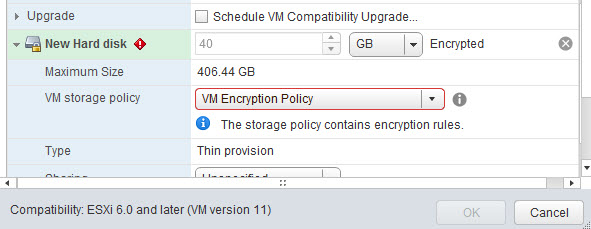
So, I next tried to apply the storage encryption policy to the deployed but powered off VM:
 Easy, huh?!!
Oh dear! Crapola - caught again. What's the "default KMS cluster"?!!!

So far I'm just getting errors. I don't think VMware implemented this at all, they were just teasing!!

Lucky for us there is a document that deals with this:
So we can set this and we're good to go?! You need to setup a KMS, the following article describes the options better:
Now for my setup, I have a one Host cluster so let's configure that as the default KMS thingy. 
I tried using these when adding a new KMS:
 But now get this error:
Not as easy as I thought!! So, we need to establish a trust between vCenter and the new KMS service. We select "Establish Trust with KMS" and select one of these fine options:
Right, I'm starting to smell something fishy here - the documentation for each of those options says "oh if you use hytrust"...or " if you use safenet"..."vormetric"..."Thales"....etc...etc...are you telling me I'm missing something here? Can I use a Windows KMS store?! Isn't this all meant to be self contained inside vCenter?!! AAAAggghhh..!!

The following KB really shows the problem:

Yerp, I don't think using this is possible out of the box. You need a third party solution. I'll go off and have a look and see if any are free (!). 
Well, I don't see any open source or free options anywhere there...!!

I did a bit more digging and a great article is here that gives a run down on why a KMS server is required:
William Lam published a test docker KMS to use in labs and check out the vm encryption feature (not in production mind you as it wipes its keys when rebooted!)

Guess it pays to keep in touch with all the new features as I'd missed a lot of this! So, let's deploy a windows kms server and install docker! 
Ah No, it installs GIT for windows. I'm not a developer!! You need to enable "Expose hardware assisted virtualization to the guest" in the KMS VM too before launching the Docker Quickstart Terminal. This will download any updated ISO's it needs and setup the virtualbox for Docker in Windows!! Turn off the windows firewall if you get 127.0.0.1 port errors and retry. 
Now we can use Mr. Lam's trick to get us a KMS!
Nice one Sir! Now, I can ping OUT from Docker but no one is allowed connect in. This is because we're running Docker INSIDE VirtualBox INSIDE Windows! So, what you gotta do is edit the VirtualBox configuration to allow TCP port 5696 be forwarded from the Windows Host inside VirtualBox to the Docker container! Double Click on the Oracle VM VirtualBox desktop icon and edit the settings as follows under default,Network, Adapter 1, Advanced, Port Forwarding:
I've added an extra rule for KMS here, leave the IPs blank. Now I can go to vCenter and have some fun: 
Instead of getting KMS connectivity errors I get a certificate trust popup!! 
So now I can click Trsut I get a good KMS as shown below:
So, that's just for test, it's not a production suitable KMS but it's enough to play with and to test VM encryption. So, I've two VMS, one running and the other deployed but shutdown (customisation scripts haven't launched yet on it). Let's try applying the Storage Policy for encryption on both. I get an error applying it to the powered on VM, the powered off one does apply but takes a while. 
The VM encryption process took just over 2 minutes. I'm sure larger VMs will take longer. 
The Datastore Browser shows the following view:
Don't see much going on here. I heard you can't take snapshots of encrypted VMs but the screen shot above was taken in the middle of a Veeam backup. 
The backup worked fine. I tried to take a snapshot but got this error:
NOT choosing the guest memory option and the snapshot is taken fine. Now I'll delete the bugger and restore via VMware and see what happens. 
So it says the VM is compliant against the policy and there's no indication of any task to reencrypt it again:

I'm not sure if I believe it however! If it's stored unencrypted in the backup solution, wouldn't it have to reencrypt it again once restored? I know I encrypted the backup myself but it's not integrated with VMware that way. Is this a false positive based on the backed up state? Well, what about powering down the VM and trying to attach it's disks to another VM?
 Even after changing the policy on the other VM to allow disk encryption it won't let me click OK! And it recognises the fact the disk is encrypted. Brilliant!
Looks good to go so. I wouldn't recommend trying to restore a disk to a different vm without unencrypting it first! 

So, that's all I'll do today. Hope you found it interesting. Always good to set up a lab and see for yourself how it all fits together. As always forget using the HTML 5 client for any of this...... 


Monday, 23 January 2017

Microsoft Azure 70-553 - Part 1

Microsoft Azure 70-553 - Part 1


This post is just to help me start capturing some of those moments when I got something working in Azure as I studied the syllabus and went "cool"!!

So 15-20% of the score goes to Azure App Service apps, otherwise called WebApps. These are simple web services that you can play with while making up silly website names. One of the first things to play with is deployment slots. I wanted to hack the starting web page so I'd know which of the deployment slots was active as I swapped them in and out to simulate real developer actions as they makes changes / revert changes to a website.

I was having trouble getting WinSCP to FTP to my test WebApp so I dropped to DOS and got it connect there. Steps:

Deploy a WebApp:

Create a few Deployment Slots - I copied the existing WebApp config:

Reset the Deployment Credentials with something you can type in (I'd keep a long cryptic key for Production however):

Log in with the FTP client while in the C:\Temp folder on your local PC:
So I used waws-prod-sn1-013.ftp.azurewebsites.windows.net as the Hostname, alicemushroom\jsoap as the username and the password was one I made up that met the security requirements. Then I was able to navigate to site\wwwroot and download a copy of hostingstart.html.
cd site
cd wwwroot
get hostingstart.html
edit this file in notepad in C:\Temp and make the desired changes
put hostingstart.html

I edited this in Notepad near the bottom, changing the heading to:
Then I was able to use deployment slots to swap it out of Production and back in again. This edited the live Production WebApp. You can edit a Deployment slot directly by using the same URL but changing the username - my first deployment slot uses username: alicemushroom__beta1\jsoap
You need to update each deployment slots credentials but once done you can edit each HTML directly and then swap / revert the Deployment Slots to check each change using the Production URL. AutoSwap is also possible. So when you make a change and save it back to the Deployment FTP it then goes live with it automatically - handier for Developers if you have a BETA and STAGING Deployment Slot - they test in BETA and publish to STAGING to go live. 
I went back to WinSCP and got the same settings working allowing me to log in with a GUI interface and have a look around at the WebApp structure. 


Simple but fun!!!! 

Note: when using your FTP client remember to change the initial directory you are in to site\wwwroot or you will drop the updated html file to the wrong location and scratch your head about why the website isn't updating & AutoSwap isn't working!!! Also try a different browser to avoid cache traps!! 

PowerShell:

Where would we be without a few PowerShell cmdlets to keep us going?!! I've listed the ones below that mirror some of the objectives done with the Portal above. If you delete the WebApp portal created earlier and recreate it using the same names in PowerShell prepare for some wierd Portal issues. Either clear the cache or switch to a different browser or it will list the new WebApp or sub components thereof as Deleted!!

New-AzureRmResourceGroup -Name alicerg -Location "North Europe"
New-AzureRmAppServicePlan -Name aliceasp -Location "North Europe" -ResourceGroupName alicerg -Tier Standard
New-AzureRmWebApp -ResourceGroupName alicerg -Name alicemushroom -Location "North Europe" -AppServicePlan aliceasp
New-AzureRmWebAppSlot -ResourceGroupName alicerg -Name alicemushroom -Slot staging -AppServicePlan aliceasp
Switch-AzureRmWebAppSlot -ResourceGroupName alicerg -Name alicemushroom -SourceSlotName staging -DestinationSlotName production

Monday, 16 January 2017

Microsoft Azure - Basics

Microsoft Azure - Basics


This post is to help me when returning to use Microsoft Azure after a stint working on other Technologies. Sometimes it takes me a few minutes to figure out the URLs and PowerShell steps to get connected.

I'm currently studying for the Infrastructure Exam 70-553 after it was updated in November 2016. I'm not sure if the exam prep companies have caught up yet. None I've found are clear about when they update their exams so I've sent off an email to one to find out if they have updated their question base specifically since then.

That said there are lots of resources out there and rather than repeat posts others have done on this topic, I'll just list a few links and get on with my Azure Basics capture:

Azure Arm Portal (New one!)
https://portal.azure.com/

Azure Classic Portal:
https://manage.windowsazure.com/

Official Microsoft 70-553 exam page:
https://www.microsoft.com/en-ie/learning/exam-70-533.aspx

Blog on new Exam:
https://buildazure.com/2016/11/06/azure-infrastructure-exam-70-533-gets-arm-refresh/

Did you know you can do the exam at home now? There is a proctoring option you can apply for, they look around your room with a webcam and then monitor you while you answer the questions. Much nicer than travelling to a sterile testing center and walking the walk of shame to collect your failure result afterwards!!!!

I'm using a work MSDN account which gives me free credits a month. I attended the 70-553 course before Xmas also so I'm just getting back to the exam topics and refreshing my knowledge before booking the exam.

The ARM Portal is your main tool. Double click the background to change the colour to a darker one which I prefer.
I got a one year subscription to Pluralsight and watched their Infrastructure Videos before attending the course which helped but being able to ask questions at particular points really aids understanding, so having an instructor is very handy. Having a good instructor is really important. Pluralsight continues to offer new Azure videos all the time so it's a really good resource but the blog link above has several other resources you can use for free so use what works and what you've access to!

The Powershell and CLI Tools are available here:
https://azure.microsoft.com/en-us/downloads/
Scroll down to "Command-line tools" and get the Windows install of PowerShell.

The Web Platform installer 5.0 runs when you launch the exe that is downloaded. This then installs / updates the PowerShell Azure cmdlets.
At this point you can use the same installer to add the CLI tools as shown above.

Note: You can also access & download the Microsoft Web Platform Installer 5.0 by googling "webpi" and browsing to the following URL:
https://www.microsoft.com/web/downloads/platform.aspx?lang=

Open PowerShell and confirm the modules are active with the following command:
Get-Module -ListAvailable Azure*
The following command will give you an error but points you to Login-AzureRMAccount:
Get-AzureRmResource
Now connect up to Azure:
Login-AzureRMAccount
You get a pop up prompting you for your Azure creds, after entering your username, click the password box and pause. This gives it a chance to ask if this is a work or personal email and then you can proceed and enter the password for the correct account.
 It reverts to PowerShell and shows you logged in.
Now you can run Get-AzureRmResource for a load of output!

That's all the interface options, now open the exam section headings and start practising and reading the documentation and off you go! Good luck with the exam and Happy Azuring!